
Home / Guide
Blox Fruits Script for PC: Windows Compatibility, Loaders & Setup
On this page
- Blox Fruits PC Script: Quick Details
- Do Blox Fruits Scripts Work on PC?
- Blox Fruits PC Script Loaders
- PC Script Comparison
- Desktop Interface Features to Check
- How to Check and Set Up a Blox Fruits PC Script
- PC Performance: FPS, Memory, and Connection
- Common Blox Fruits PC Script Problems
- Can You Use Auto Farm Scripts on PC?
- Blox Fruits Scripts on PC vs Mobile
- Account Safety and Download Risks
- Frequently Asked Questions
- Conclusion
A Blox Fruits script for PC is third-party code intended to add tools or automate actions inside the Roblox game. Script hubs may offer menus for farming, movement, or other tasks. On a computer, those menus often depend on mouse input and keyboard controls. Their features and compatibility depend on the project and the software used to run them.
Also read: Blox Fruits executor guide, Fluxus Blox Fruits script and how to use Blox Fruits scripts.
If you’re looking for a PC loader, this guide includes published Redz Hub and Hoho Hub examples. You’ll find source details, key requirements, and checks for your Windows setup. These loaders have not been tested in live PC gameplay for this guide. A published script address does not prove that every feature works with the current Roblox version.
Below, you’ll learn how to check desktop requirements and understand common script problems. We’ll cover keyboard shortcuts, missing menus, low frame rates, and unexpected crashes. You’ll also see why Windows support does not automatically include macOS. For the full hub directory, visit our Blox Fruits Script Collection.
Blox Fruits PC Script: Quick Details
Before choosing a script, separate the game’s requirements from the script’s requirements. Your computer may run Roblox while a particular third-party tool remains incompatible. Source availability, menu controls, and gameplay features also need separate checks. This table shows the scope of the information below.
| Detail | Information |
|---|---|
| Game platform | Roblox |
| Main desktop platform covered | Windows |
| Official Roblox Windows requirement | 64-bit Windows 10 or Windows 11 |
| Published loaders included | Redz Hub and Hoho Hub |
| Key requirement | Depends on the project |
| PC gameplay test status | Not tested for this guide |
| Source review date | September 24, 2026 |
Roblox lists 64-bit Windows 10 and Windows 11 as supported Windows systems. Its Windows app also requires DirectX 10 or higher feature-level support. These requirements describe the official Roblox application. They are not a compatibility guarantee for third-party scripts.
Do Blox Fruits Scripts Work on PC?
Some scripts are designed for desktop setups, but compatibility must be checked individually. The loader, downloaded code, and software running it all matter. An old screenshot of a working menu cannot confirm support after an update. Look for current publisher instructions that identify the supported setup.
Windows Compatibility
Check which Windows version and Roblox setup the publisher documents. A general “PC supported” label may leave important details unclear. If the project names a specific dependency, check that requirement too. Leave compatibility unconfirmed when the documentation does not establish it.
Does Windows Support Include macOS?
Windows and macOS are different operating systems. Software built for one does not automatically run on the other. Roblox supporting a Mac also does not establish support for a Windows script setup. Mac users need separate instructions from the relevant project.
Loaders, Script Hubs, and Executors
A loader is a short piece of code that fetches more code. A script hub usually groups several tools inside one menu. An executor is separate software used to run scripts in the game client. These terms describe different parts of a setup, so their names should not be used interchangeably.
Blox Fruits PC Script Loaders
The examples below link to published project sources. They are included as source references, with current PC gameplay support left unverified. A loader can stay the same while the code it downloads changes. Check the publisher’s current documentation instead of relying only on a saved copy.
Redz Hub Script
Redz Hub’s GitHub repository lists Blox Fruits among its supported games. The publisher describes the project as free and keyless. Its documented settings include team selection and a translator option. The reviewed README does not establish a tested Windows configuration for this guide.
loadstring(game:HttpGet("https://raw.githubusercontent.com/tlredz/Scripts/refs/heads/main/main.luau"))()Hoho Hub Script
Hoho Hub’s published loader forwards to another loading script in the acsu123 project. The reviewed code includes Blox Fruits in its game list. It also contains key validation, so this version should not be described as confirmed keyless. Its source details do not replace a current desktop gameplay test.
loadstring(game:HttpGet("https://raw.githubusercontent.com/acsu123/HOHO_H/main/Loading_UI"))()PC Script Comparison
Compare what the sources establish before comparing advertised features. A key requirement explains access, while a desktop test checks actual behavior. Neither a GitHub link nor a familiar hub name proves reliability. The table below keeps those distinctions clear.
| Project | Source evidence | Key information | Windows gameplay | Desktop controls |
|---|---|---|---|---|
| Redz Hub | Published repository and loader | Publisher describes it as keyless | Not tested here | Not tested here |
| Hoho Hub | Published loader and loading code | Reviewed code includes key checks | Not tested here | Not tested here |
Desktop Interface Features to Check
A larger screen gives you room for menus, but layout still matters. A panel can hide game controls or open outside the visible window. Keyboard shortcuts can also clash with actions you already use. The following features are useful checks rather than confirmed features of every hub.
Keyboard Shortcuts and Menu Toggle
A menu toggle should have a clearly documented key. You should be able to hide the panel and bring it back. Avoid assuming that every hub uses the same shortcut. If a key does nothing, check the instructions before trying random combinations.
Mouse Controls and Scrollable Menus
Buttons, sliders, and lists should respond predictably to the mouse. A long settings panel needs a usable scroll area. Check whether scrolling moves the list you intended to use. Overlapping panels can make an otherwise visible button difficult to reach.
Resizable and Movable Windows
A movable window can keep the game’s controls visible. Resizing may also help when a panel takes up too much space. These options depend on the interface’s design. Look for a position-reset option in case the menu moves beyond the screen.
Readable Text at Different Resolutions
A menu that looks clear on one monitor may appear tiny on another. Windows display scaling and the game window’s size can affect the available space. Check whether labels and buttons remain readable in your setup. A larger monitor alone does not fix a poorly sized interface.
Shortcut Conflicts
The same key may control both a script menu and a game action. That can make a single press trigger an unwanted result. Review the hub’s key settings if it allows changes. Keep essential game controls easy to reach.
How to Check and Set Up a Blox Fruits PC Script
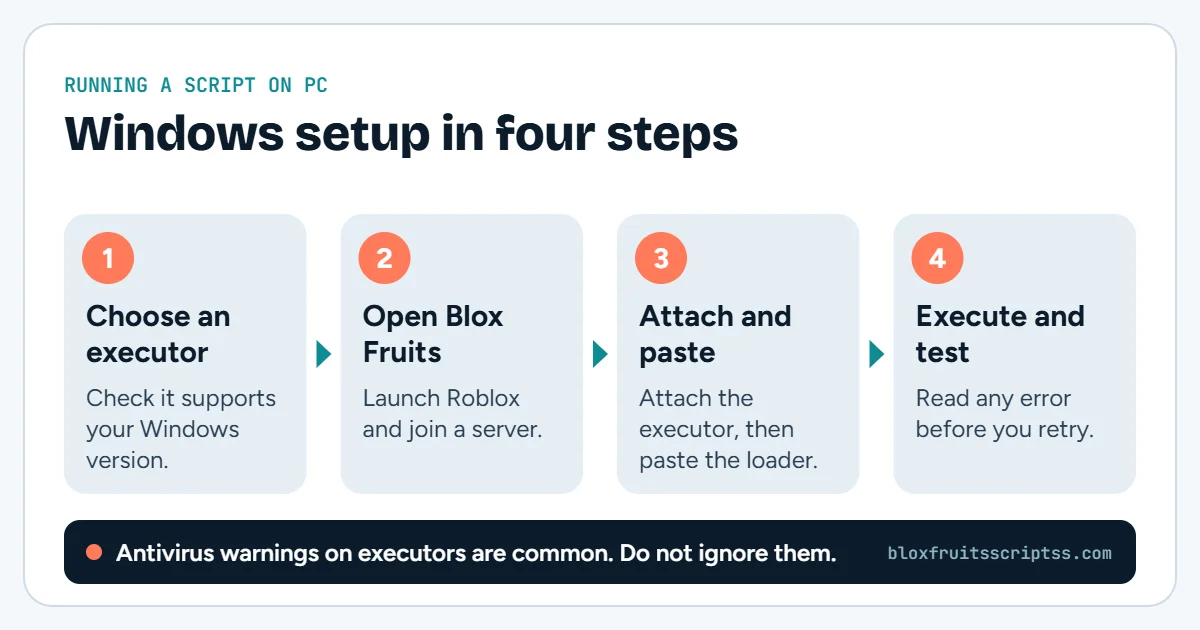
Start by checking that official Roblox gameplay works normally. This gives you a baseline when comparing later errors. Then review instructions for the exact project and platform involved. There is no single installation process that applies to every script hub.
Step 1: Confirm Your Windows Version
Open Windows Settings and check the system information under About. Note the Windows version and system type. Compare those details with Roblox’s official requirements and the project’s instructions. Do not treat the game’s requirements as the script’s requirements.
Step 2: Check Official Roblox Gameplay
Open Blox Fruits through the official Roblox application. Check movement, camera controls, and normal menu access. Note whether the game already freezes or disconnects. Existing app problems should be resolved before blaming a script.
Step 3: Review the Publisher’s PC Instructions
Find the current instructions linked by the project. Look for supported platforms, dependencies, and known problems. Check whether the instructions refer to the current release. Missing compatibility details should remain marked as unknown.
Step 4: Check the Loader and Key Requirements
Compare the loader with the publisher’s source. Keep its URL complete and preserve normal straight quotation marks. Check whether access requires a separate project key. That key is different from your Roblox password or recovery code.
Step 5: Follow the Documented Setup
Use the setup process that matches the project’s stated requirements. Do not combine steps from unrelated hubs or old tutorials. If an instruction depends on unavailable software, the setup is incomplete. A different filename or copied shortcut will not resolve that gap.
Step 6: Check Desktop Controls
If the interface loads, check its documented menu toggle. Confirm that mouse clicks and scrolling reach the correct panel. Make sure the menu can be closed without losing access to it. Then assess each feature separately rather than assuming the whole hub works.
PC Performance: FPS, Memory, and Connection
Slow gameplay can come from different causes. Low FPS, or frames per second, makes the picture look choppy. Network delay can make actions respond late even when the picture looks smooth. Roblox’s support guidance distinguishes graphics, network, and system lag.
Graphics Settings and Frame Rate
For choppy visuals, open Roblox’s menu with the Esc key. Under Settings, switch graphics control to manual if needed. Lower the graphics quality and compare the result. Roblox notes that lower graphics settings reduce visual detail and can reduce the device’s workload.
Background Apps and Memory Use
Other demanding programs can compete with Roblox for system resources. Close programs you do not need while checking performance. Change one thing at a time so the result is easier to judge. Roblox recommends checking background applications when lowering graphics does not help.
Why Better Hardware Cannot Fix Every Error
A faster computer cannot restore a deleted source file. More memory also cannot correct a broken address or missing function. If only one script feature fails, investigate that feature first. Hardware upgrades should not be presented as a universal script fix.
Common Blox Fruits PC Script Problems
Record the exact problem before changing your setup. Include any error message and the action that triggered it. Check whether the issue also appears during ordinary Roblox gameplay. The table below lists possible causes, not confirmed diagnoses.
| Problem | Possible cause | What to check |
|---|---|---|
| Script menu never appears | Loading failure or unsupported setup | Current source and publisher instructions |
| Menu shortcut does nothing | Different key binding or input focus | Documented toggle key and active window |
| Menu opens off-screen | Saved position or layout issue | Available layout-reset option |
| Mouse clicks do not reach the game | A panel or overlay is capturing input | Visible menus and overlays |
| Menu works but a feature fails | Feature-specific compatibility problem | Publisher’s known issues |
| Roblox freezes or closes | App, system, or third-party software issue | Whether official gameplay also fails |
| Key validation fails | Invalid, expired, or mismatched key | Current project key process |
| Script fails after an update | Changed compatibility | Current release notes and unresolved reports |
For general desktop Roblox problems, its support guide recommends restarting the computer first. Reinstallation is another troubleshooting step when the official app remains faulty. Those steps address Roblox installation and app problems. They do not establish that a third-party script is compatible.
Can You Use Auto Farm Scripts on PC?
Auto farming depends on the specific script and its current supported setup. A menu opening on Windows does not prove that quests, targeting, and attacks work. Check each farming task against the publisher’s documentation and actual results. No live PC auto-farm configuration was tested for this guide.
Level farming, mastery farming, and material farming also have different goals. A general Auto Farm label may not explain which tasks are included. Keep those feature checks separate from desktop controls and performance. Our Blox Fruits Auto Farm Script guide covers farming settings and related problems in more detail.
Blox Fruits Scripts on PC vs Mobile
PC and mobile interfaces need different input designs. A desktop menu can use mouse input and keyboard shortcuts. A phone needs controls that remain usable through touch. Support for one platform does not confirm support for the other.
| Area | PC | Mobile |
|---|---|---|
| Main input | Keyboard and mouse | Touchscreen |
| Menu access | May use a keyboard shortcut | Needs an accessible touch control |
| Available space | Depends on monitor and window size | Depends on phone or tablet screen |
| Common interface issue | Shortcut conflicts or off-screen panels | Small buttons or blocked game controls |
| Compatibility evidence | Check Windows documentation | Check Android and iOS separately |
Account Safety and Download Risks
Roblox states that cheating and exploiting violate its rules and can lead to account deletion. Its support page also warns that exploit downloads may contain malware or steal account information. An “anti-ban” label does not prove protection from enforcement. Never enter your Roblox password or recovery codes into a script’s access form.
Frequently Asked Questions
Desktop script questions often mix up the game, the script, and the software running it. Each part has a different role. Changing one part does not automatically repair the others. These answers explain common points of confusion.
Can I Paste a Script Into Roblox PC Chat?
Pasting a loader into chat does not run it. Chat handles messages and supported game commands. It is not a general code editor. A script shared in a message therefore remains text.
Is Roblox Studio Required?
Roblox Studio is used to create and edit Roblox experiences. Installing it does not let you insert arbitrary code into another creator’s live game. The third-party loaders discussed here are not a normal Studio setup process. You also do not need Studio simply to play Blox Fruits.
Can a Mobile Loader Work on Windows?
A project may use the same loader for several supported platforms. That depends on the downloaded code and its requirements. Matching loader text alone does not prove Windows compatibility. Check the project’s desktop instructions separately.
Why Does the Menu Open but Its Features Fail?
The interface and gameplay tools can rely on different parts of the code. One part may load while another encounters an error. A game update can also affect a particular feature. Assess the failed action instead of treating the visible menu as proof that everything works.
Can a Private Server Fix PC Compatibility?
A private server does not change Windows or the script’s dependencies. It also does not repair missing functions or a broken loader. Compatibility still depends on the project and supported setup. Private-server access is not a general technical fix.
Does an FPS Unlocker Run Scripts?
Changing a frame-rate limit and executing gameplay scripts are different functions. An FPS tool’s name does not establish script-running support. It also does not prove compatibility with a particular hub. Check what the software actually documents.
Does a Script Keep Running After Roblox Closes?
A script running inside your Roblox session stops when that session ends. Keeping the loader in a text file does not keep it active. Closing Roblox therefore ends that in-session execution. Claims of offline operation need separate evidence.
Conclusion
A Blox Fruits PC script needs more than a valid-looking loader. Check its source, Windows requirements, desktop controls, and individual features. Separate normal Roblox performance problems from script-specific errors. Use the complete Blox Fruits Script Collection to explore other hubs and their source details.
Before you run anything: using scripts in Roblox breaks the Roblox Terms of Service and can lead to a ban. Use an alternate account and check every source yourself.
Keep reading
More Blox Fruits guides
Executors
A Blox Fruits executor is third-party software used to run scripts in the Roblox game client. The executor provides…
Delta script
A Delta Blox Fruits script is code that players want to run through Delta Executor while playing Blox Fruits on…

Fluxus script
A Fluxus Blox Fruits script is code that players look for to use with Fluxus Executor in Roblox. Fluxus refers to the…
Redz Hub
Redz Hub is a Roblox automation script project published through the tlredz/Scripts GitHub repository. Its…